Backblaze's Drive Stats report of 12 February 2026 put the 2025 annualised drive failure rate at 1.36 percent across 337,192 drives, with individual models ranging from zero to 10.29 percent.
The short version: Most people who lose data do not lose it to a dramatic hard drive failure. They lose it to a deletion that synced everywhere within seconds, to a stolen laptop, or to ransomware that reached the external drive because the drive was plugged in. The rule worth learning is 3-2-1: three copies, on two kinds of media, with one copy off-site. The addition that matters most now is versioning, because a backup that faithfully mirrors your current files will faithfully mirror your mistake. Backblaze, which publishes failure data on its own fleet, reported an annualised failure rate of 1.36 percent for calendar 2025 in its Drive Stats report of 12 February 2026: low enough that drive failure should not be your main worry, high enough that trusting a decade of photographs to one drive is a bad trade.
What actually destroys data
Ask people what a backup is for and most say “in case the hard drive dies.” Drives do die. But drive death is the tidiest and most anticipated way data disappears, and not the one that catches people out.
The five failure modes that actually bite
Hardware failure. The drive stops, or starts returning garbage. This is the case everyone plans for, and the one a single extra copy solves.

Loss and theft. A laptop left in a taxi, or a burglary that takes the computer and the backup drive next to it. Proximity is the enemy: two copies in one room are one copy with extra steps.
Accidental deletion and overwrite. You delete the wrong folder, save over a document, or let a photo app “clean up duplicates” with more enthusiasm than judgement. Nothing failed. The system did what it was told.
Ransomware. Malware encrypts your files and demands payment. The StopRansomware Guide issued by CISA, the FBI, the NSA and MS-ISAC in May 2023 is explicit that many ransomware variants “attempt to find and subsequently delete or encrypt accessible backups,” which is why it recommends maintaining “offline, encrypted backups of critical data.”
Sync propagating a destructive change. The quiet one. You delete a folder on the laptop and within seconds the deletion reaches every other device and the cloud copy. The same guide says it plainly: “Automated cloud backups may not be sufficient because if local files are encrypted by an attacker, these files will be synced to the cloud, possibly overwriting unaffected data.”
The misconception: “it is in the cloud, so it is backed up”
This belief causes the most avoidable loss, so correct it head-on. A sync service keeps two locations identical. That is its job and it does it well. But identical means identical, including the parts you wish were different. If a file is corrupted, deleted or encrypted on one side, sync makes the other side match. Sync protects you against one device failing. It does not protect the data itself.
A backup is different in one specific way: it keeps a copy of a state you are no longer in. That is the whole distinction. Everything else, the cloud, the external drive, the network box, is a delivery mechanism.
Most consumer sync services do keep deleted files and older versions for a retention window, often 30 days, which closes part of the gap. But retention windows are a product feature that can change, they rarely cover a file you deleted a year ago, and they are not a copy that malware running as you cannot reach.
Which layer defends against what
| Threat | Second local drive | Cloud sync folder | Versioned cloud backup | Disconnected offline copy |
|---|---|---|---|---|
| Drive failure | Yes | Yes | Yes | Yes |
| Laptop lost or stolen | Yes | Yes | Yes | Yes |
| You delete the wrong folder | Only if not yet mirrored | Only within retention window | Yes | Yes |
| Sync replicates a deletion | No | No | Yes | Yes |
| Ransomware encrypts files | No, if drive was connected | No | Usually, via version history | Yes |
| Fire, flood or burglary at home | No | Yes | Yes | Only if stored elsewhere |
| Cloud account locked or compromised | Yes | No | No | Yes |
Read the bottom row carefully. It argues against putting everything with one provider, and it is why 3-2-1 asks for different media rather than just more space.
The 3-2-1 rule and what published failure rates really tell you
Where the rule came from
The 3-2-1 formulation is usually credited to the photographer Peter Krogh, whose book The DAM Book: Digital Asset Management for Photographers was published by O’Reilly Media in 2006. The attribution is repeated almost everywhere, though 3-2-1 is a rule of thumb from professional photography rather than anything issued by a standards body. Government guidance restates the same shape without the label: the StopRansomware Guide asks for offline, encrypted copies and regular restore testing, which is 3-2-1 in different words.
The rule survives because it fails gracefully. Three copies means one can be wrong without you noticing. Two media types means a single systemic flaw, a bad drive batch or a provider outage, cannot take all of them. One copy off-site means no single physical event reaches everything.
Reading an annualised failure rate honestly
Backblaze publishes quarterly and annual statistics on the drives in its own data centres, the largest openly published failure dataset a consumer can read. Its 2025 report, published 12 February 2026, covers 337,192 drives and puts the annualised failure rate for 2025 at 1.36 percent, down from 1.55 percent in 2024, with a lifetime rate of 1.30 percent across thirteen years.
Two cautions. First, that describes drives running continuously in a climate-controlled data centre, not a laptop that gets dropped or a drive that lives in a bag. Second, the fleet average conceals enormous spread: the same report shows models ranging from zero failures to an annualised rate of 10.29 percent for one 8TB model roughly seven and a half years old.
The useful reading is not “my drive has a 1.36 percent chance of dying this year.” It is that failure is uncommon enough to be surprising, certain enough across many drive-years, and wildly variable between units. That is exactly the shape of risk a second copy absorbs well and hope absorbs badly.
Versioning, encryption and the restore you have never tested
Versioning is the defence against ransomware and against yourself
Versioning means the backup keeps previous states of a file, not just the current one. It is the only mechanism that answers “the file is still there, but it is now wrong, and has been for three weeks.” Against ransomware it lets you roll back to a point before encryption. Against your own mistakes it does the same job, and mistakes are far more frequent.
When you choose a backup service, versioning depth is the specification to check. Thirty days is common; a year is better for documents you touch rarely.
Local versus cloud, and the restore-time difference
This is the trade-off people discover at the worst moment. A local backup on an external drive restores at the speed of a cable: a few hundred gigabytes in an hour or two. A cloud backup restores at the speed of your home internet connection. The Federal Communications Commission raised its fixed broadband benchmark to 100 megabits per second down and 20 up in its Section 706 report adopted in March 2024, and the download figure governs a restore. At 100 megabits per second, assuming you get all of it, 500 gigabytes takes roughly eleven hours of continuous transfer. In practice, longer.
The conclusion is not that cloud backup is bad, but that the two layers do different jobs. Local is for speed of recovery; cloud is for surviving the event that destroys your house. You want both, and you will reach for the local one first.
Encryption and who holds the key
An off-site backup is a copy of your entire life on someone else’s computer. Encryption makes that acceptable, and the question is who holds the key. If the provider holds it, they can restore your access when you forget your password, and they can also be compelled to hand over your data, or lose it in a breach. If only you hold it, nobody reads your backup without you, and nobody can help if you lose the key. Apple’s iCloud data security overview, updated 5 January 2026, describes the trade-off directly: standard data protection end-to-end encrypts 15 data categories, Advanced Data Protection raises that to 25, and if you enable Advanced Data Protection and lose access, Apple states it cannot help you recover the data because it does not hold the keys. Three categories, iCloud Mail, Contacts and Calendars, stay outside end-to-end encryption even then, because they must interoperate with standards such as CardDAV and CalDAV.
The decision rule: before you trust any backup, ask whether a single action, taken by you or by malware running with your permissions, could destroy or encrypt every copy you have. If the answer is yes, you do not have a backup. You have copies. Add one layer that is either physically disconnected or protected by version history that the copy cannot overwrite.
Phones, photo libraries and a realistic minimum
What phone backups do and do not include
Phone backups are less complete than people assume, on both platforms, for the same reason: anything that already syncs to the cloud is generally not duplicated inside the device backup.
Apple’s support documentation on iCloud Backup, last updated 1 May 2025, states that the backup covers device settings, Home Screen and app layout, app data, and messages and photos only when the corresponding sync services are switched off. If iCloud Photos or Messages in iCloud is enabled, that content lives in the sync service instead, with its retention window, rather than in the backup.
Google’s Android backup documentation describes coverage of apps and app data, call history, contacts, device settings, and SMS and MMS messages, with photos and videos handled separately through Google Photos. It notes that “not all apps can back up or restore all settings and data,” and that a backup from a newer Android version cannot be restored onto a device running an older one.
The practical consequence on both platforms is that some third-party app data, particularly from apps with their own accounts, is simply not in the backup. Messaging apps with local-only histories are the classic casualty.
Photo libraries: the loss people actually regret
Documents can usually be reconstructed. Photographs cannot. If you do one thing after reading this, make it a second independent copy of your photo library, held outside the account your phone uses. An external drive copied once a quarter and left at a relative’s house is unglamorous and works.
The backup nobody tests
The StopRansomware Guide asks organisations to “test backup procedures on a regular basis” and to verify “the availability and integrity of backups in a disaster recovery scenario.” The consumer version takes about ten minutes.
Pick a file you would genuinely miss. Restore it to a new location, not over the original. Open it and confirm it is the right version and not corrupt. Then check the backup’s date: a backup that silently stopped running in March is the most common failure of all, and the only way to catch it is to look. Do this twice a year, and after you change computers, phones or backup software.
A realistic minimum
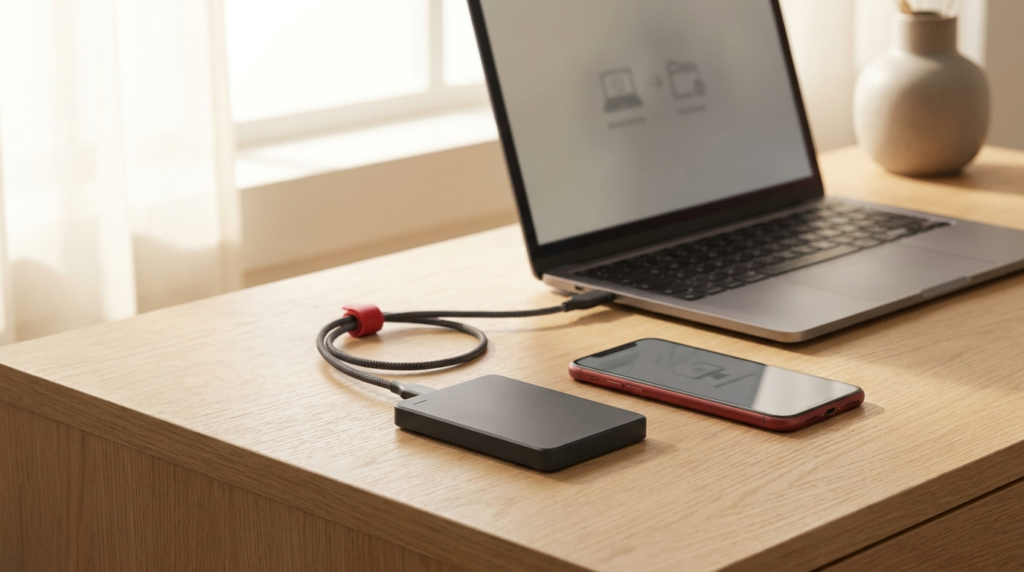
For most households this is enough: one automatic cloud backup with version history covering the computer; one external drive kept disconnected between weekly or monthly runs; the phone backing up to its platform service; and one copy of the photo library on media connected to nothing, kept away from your home. Three copies, two media types, one off-site, with versioning on the layer that faces the internet.
Where these figures come from
Failure rates and drive counts are from Backblaze Drive Stats for 2025, published 12 February 2026. Ransomware and backup guidance, including the wording on offline encrypted backups, cloud sync limitations and restore testing, is from the StopRansomware Guide issued jointly by the Cybersecurity and Infrastructure Security Agency, the Federal Bureau of Investigation, the National Security Agency and the Multi-State Information Sharing and Analysis Center in May 2023. Broadband benchmarks are from the Federal Communications Commission Section 706 report adopted in March 2024. Phone backup coverage is from Apple’s iCloud Backup support documentation dated 1 May 2025, Apple’s iCloud data security overview dated 5 January 2026, and Google’s Android backup and restore support documentation. The 3-2-1 formulation is commonly attributed to Peter Krogh, author of The DAM Book, O’Reilly Media, 2006.
General information, current as of September 2026, and not personalised advice.
Frequently asked questions
Is syncing to the cloud the same as a backup?
Not quite. Sync mirrors changes, including deletions and ransomware encryption, across devices. Versioned backup keeps older copies you can roll back to. Many cloud services include limited version history; know yours.
How much backup storage do I need?
Check your current data size in your device's storage settings, then choose cloud and drive capacity comfortably above it. Photos and video dominate most households' totals.
What about my passwords and two-factor codes?
Password managers include their own encrypted sync. Export or note your two-factor recovery codes separately, since restoring a phone does not always restore authenticator apps automatically.